
.png)




Geoblocking lets you block or allow email traffic based on the geographic location of the sending IP address. Blocking a country prevents malicious or unwanted traffic coming from that region, while allowing a country ensures email from a that country is allowed through.
Countries can be blocked or allowed from the MSP or Customer level. Customers inherit MSP entries, and they cannot edit or delete these inherited entries. However, customers can add, edit and delete their own entries, which do not affect the MSP.
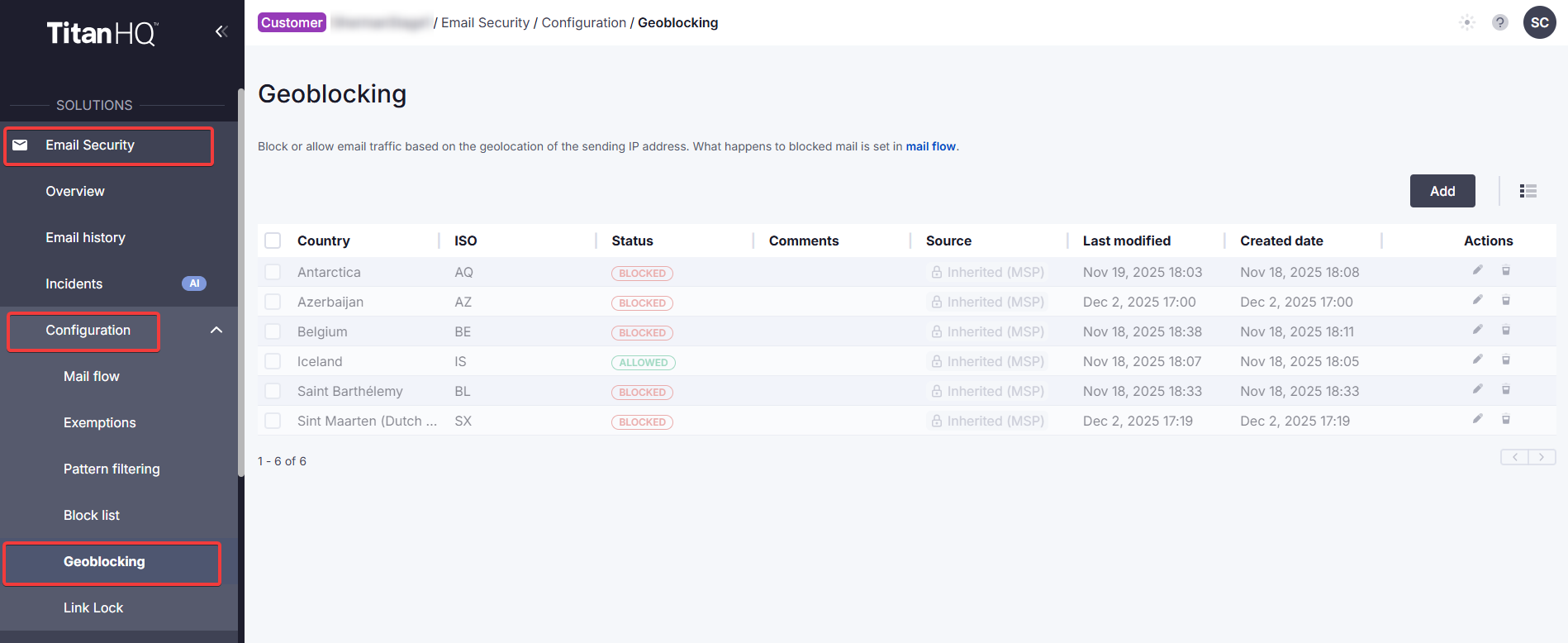
Find geoblocking under Email Security > Configuration > Geoblocking.
PAGE CONTENTS
How to add a geoblocking entry
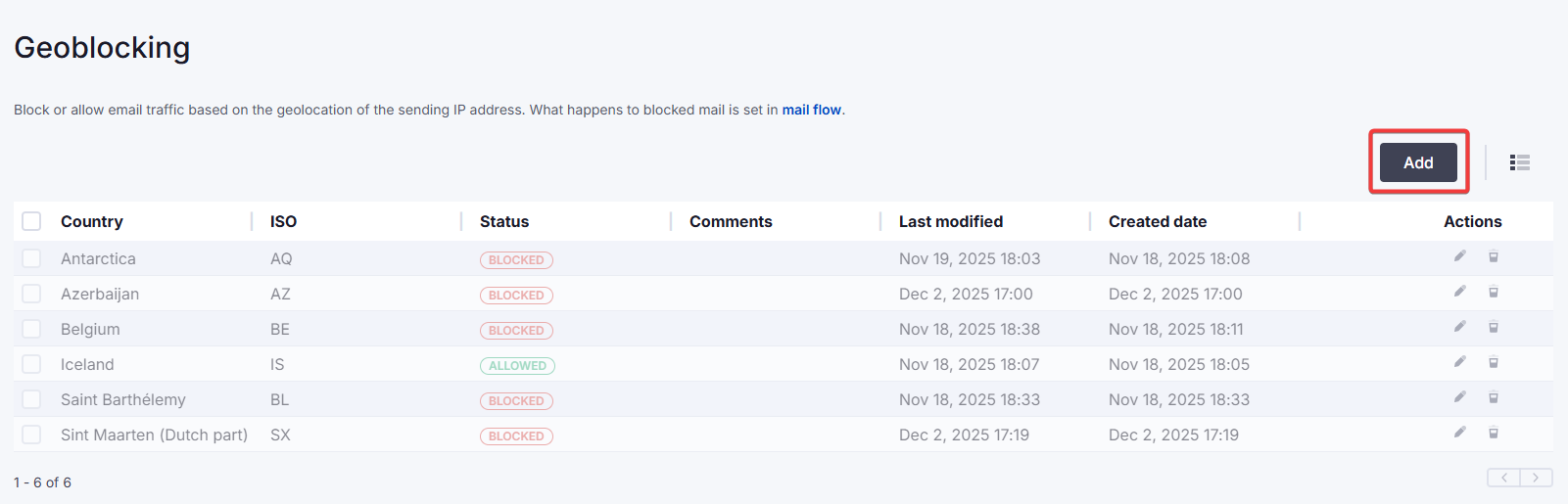
1. On the Geoblocking overview, click Add at the top right.
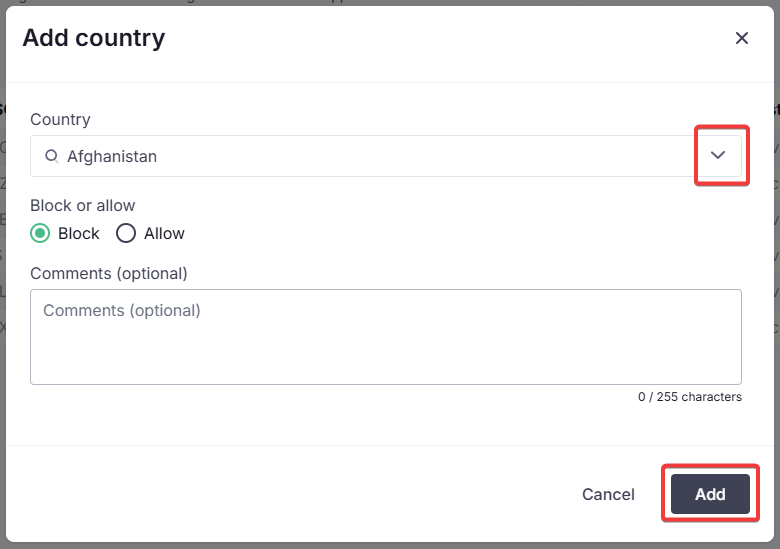
2. Select a country from the drop-down list. Indicate whether this country should be blocked or allowed. Click Add.
The country will now appear in the geoblocking table, with a status of Blocked or Allowed. You can customize the table columns by clicking on the columns icon.
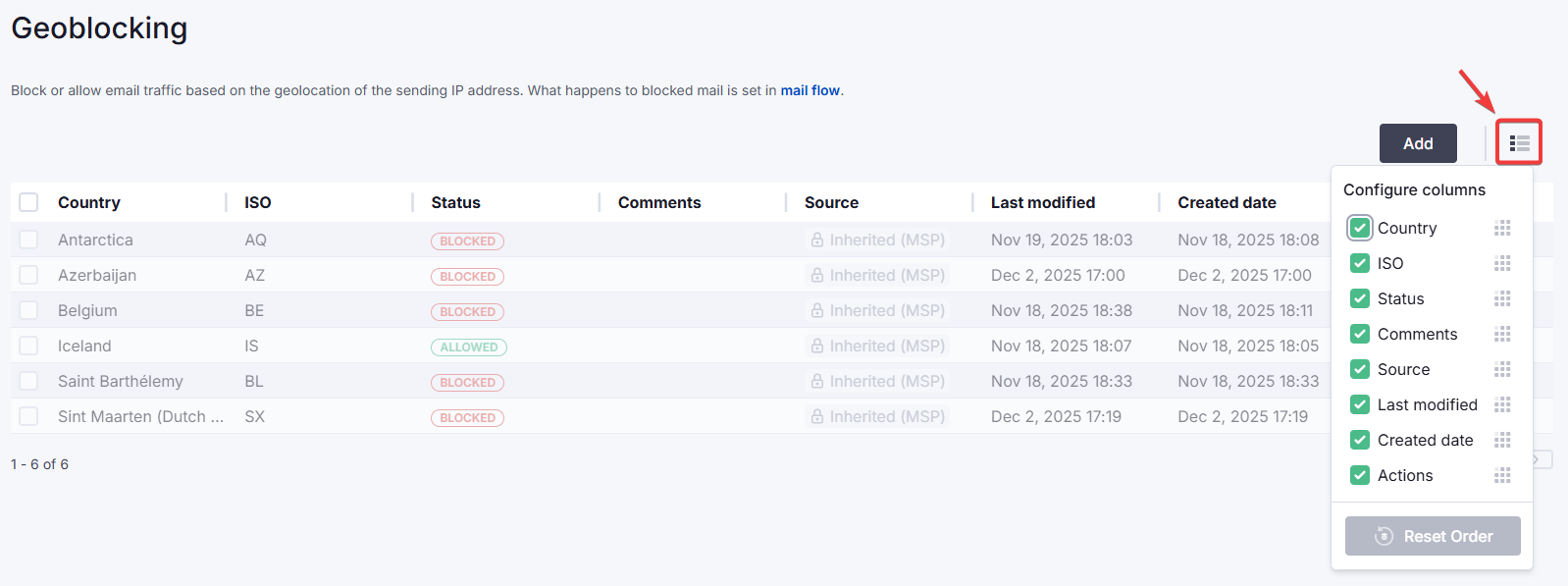
Note: Inheritance is indicated in the Source column of the geoblocking table. This column is only available on the Customer level.
How to edit a geoblocking entry
1. Locate the entry in the table. In the Actions column, click on the edit icon.
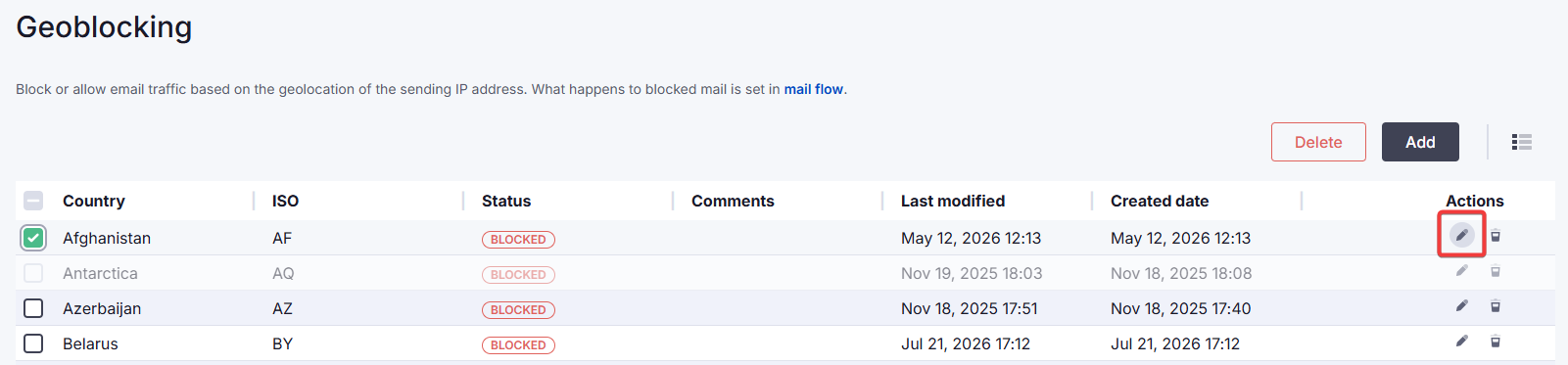
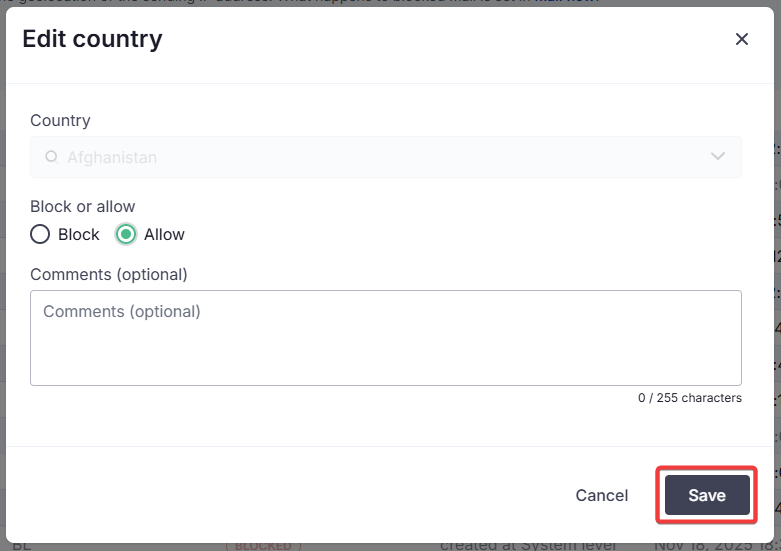
2. Update the details as needed and click Save.
How to delete a geoblocking entry
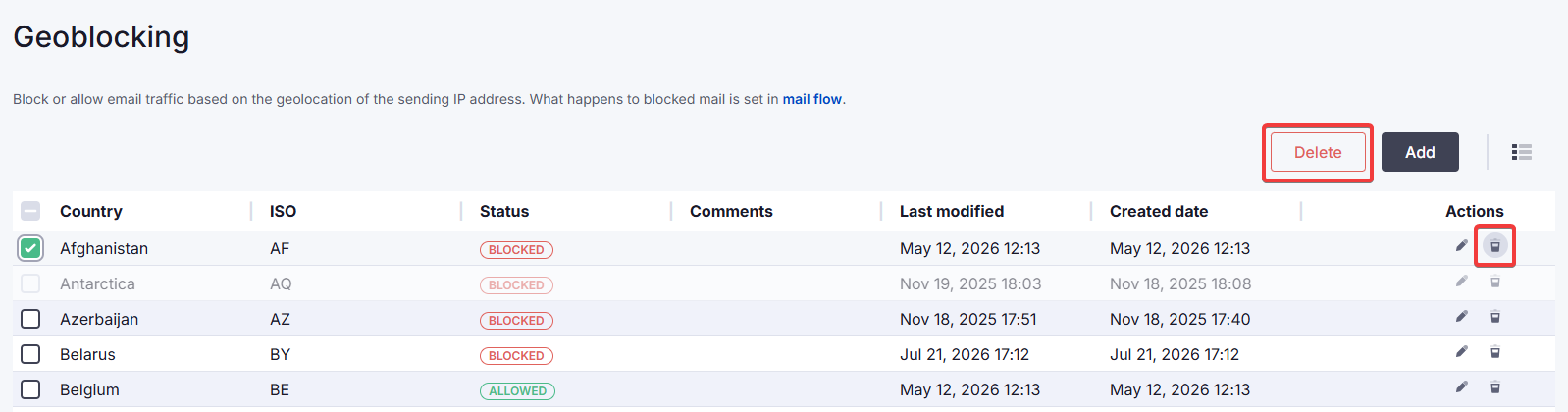
1. Locate the entry in the table. Click Delete at the top right, or click the delete icon in the Actions column.
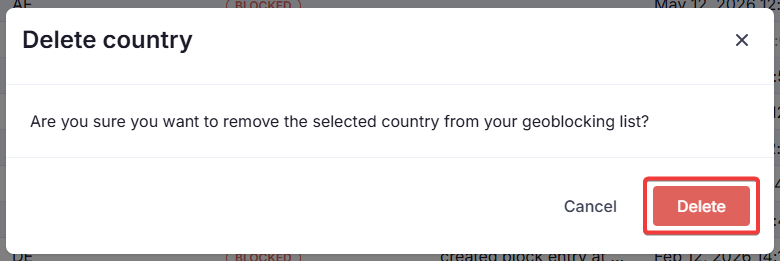
2. Click Delete to confirm.
 1.png)