
.png)




Follow the steps below to remove the Email Security solution from a customer.
- Steps to complete in the Platform
- Steps to complete in the Microsoft Purview portal
- Steps to complete in the Entra admin center
Steps to complete in the Platform
Complete the following steps in the Platform:
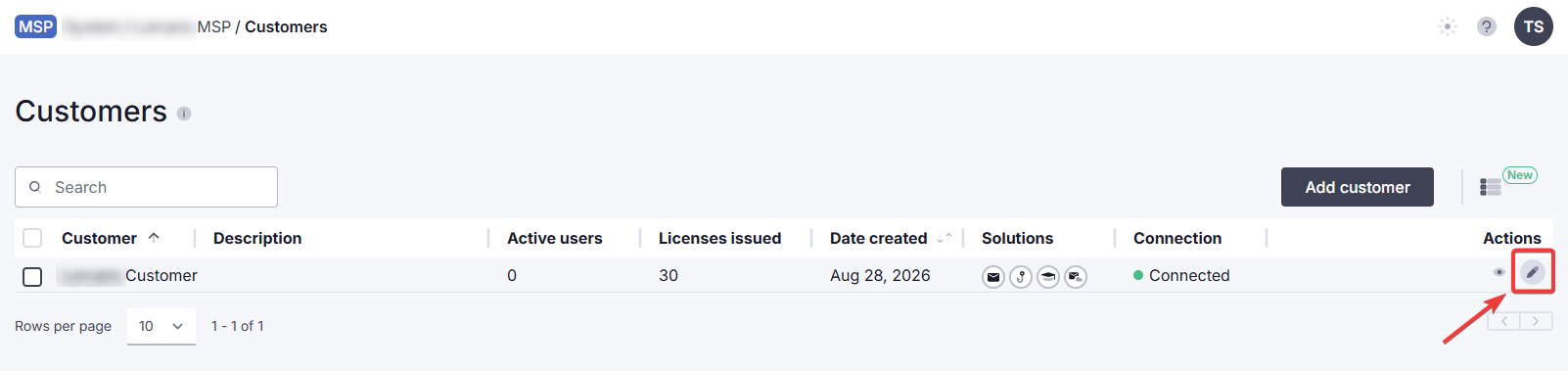
1. Go to Email Security > Overview > All Customers. Locate the customer in the table and go to Actions > Edit.
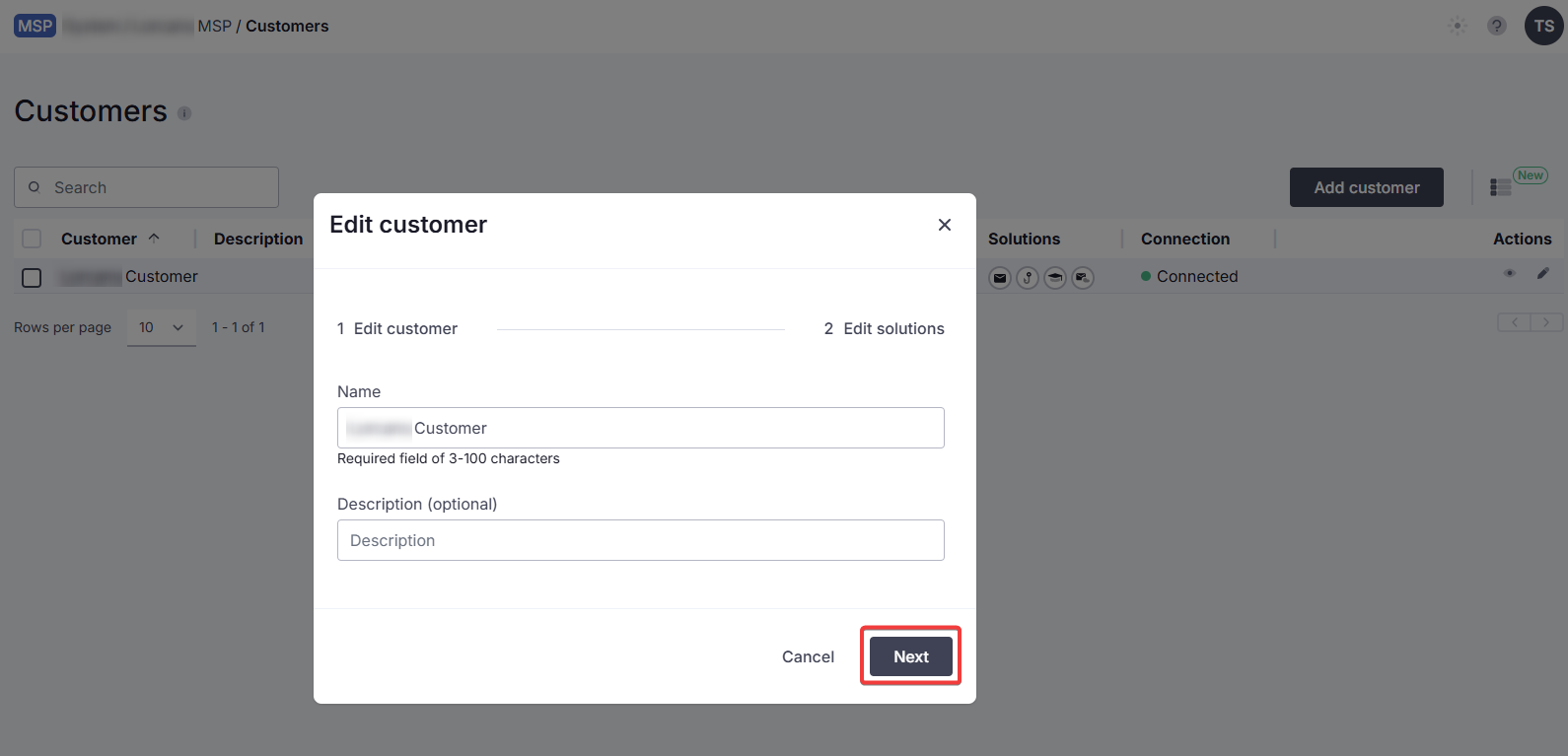
2. In the Edit customer dialog, click Next.
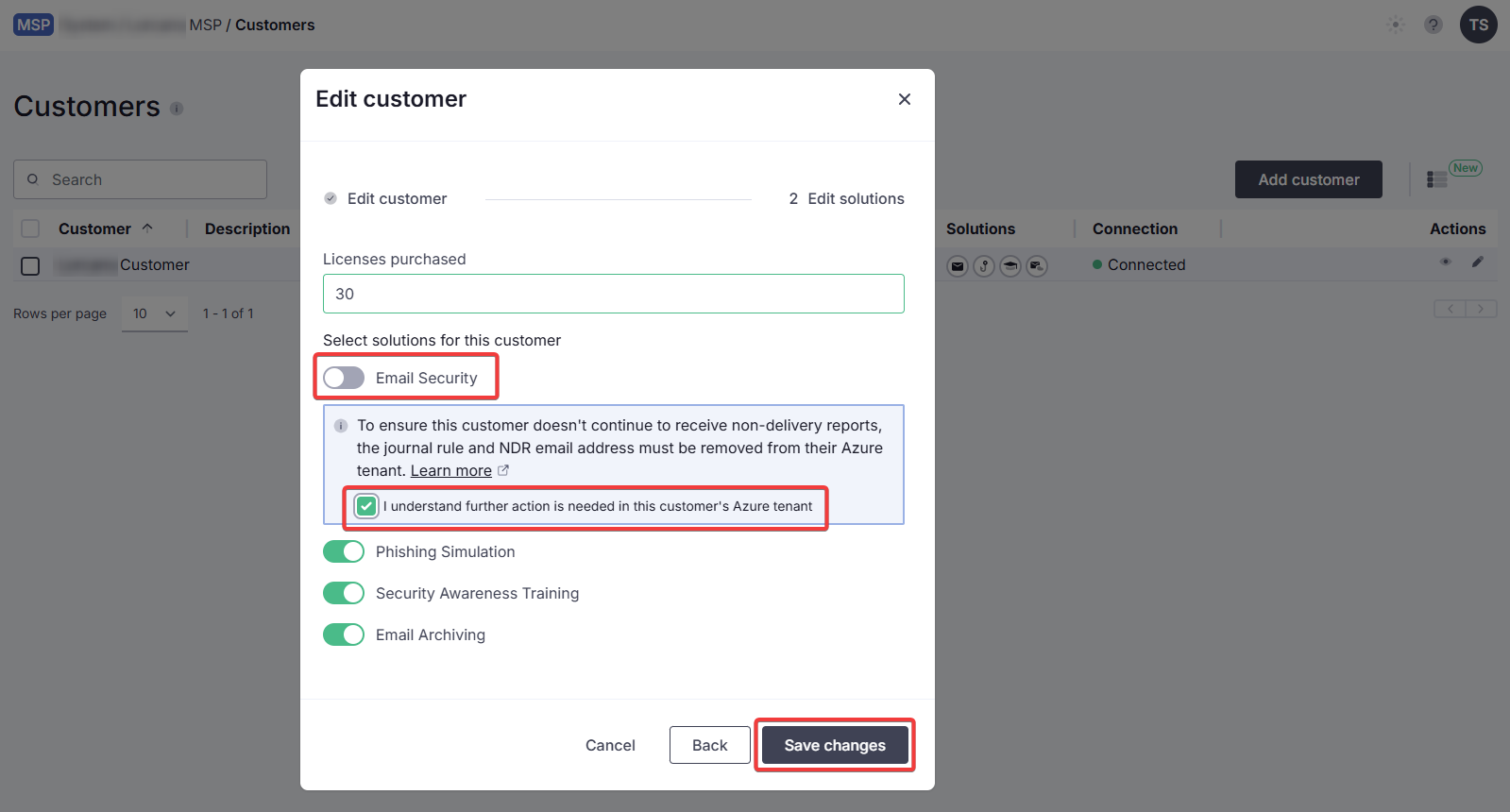
3. Deselect Email Security. Check the box to acknowledge that further action is needed. Click Save changes.
Steps to complete in the Microsoft Purview portal
Disable the journal rule
First, disable the journal rule that was set up as part of connecting this tenant to the Platform. This can only be performed by a global admin. To do this:
1. Log into the Microsoft Purview portal.
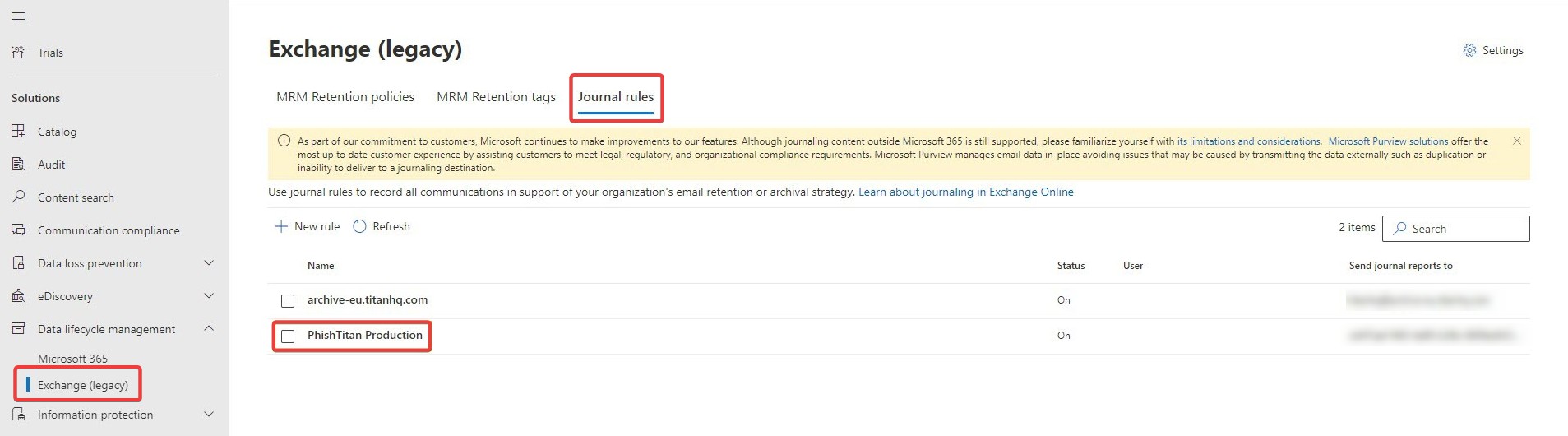
2. Navigate to Solutions → Data lifecycle management → Exchange (legacy)→ Journal rules.
3. Select the applicable rule and disable or delete it.
For more information, see Manage journaling in Exchange Online | Microsoft Learn.
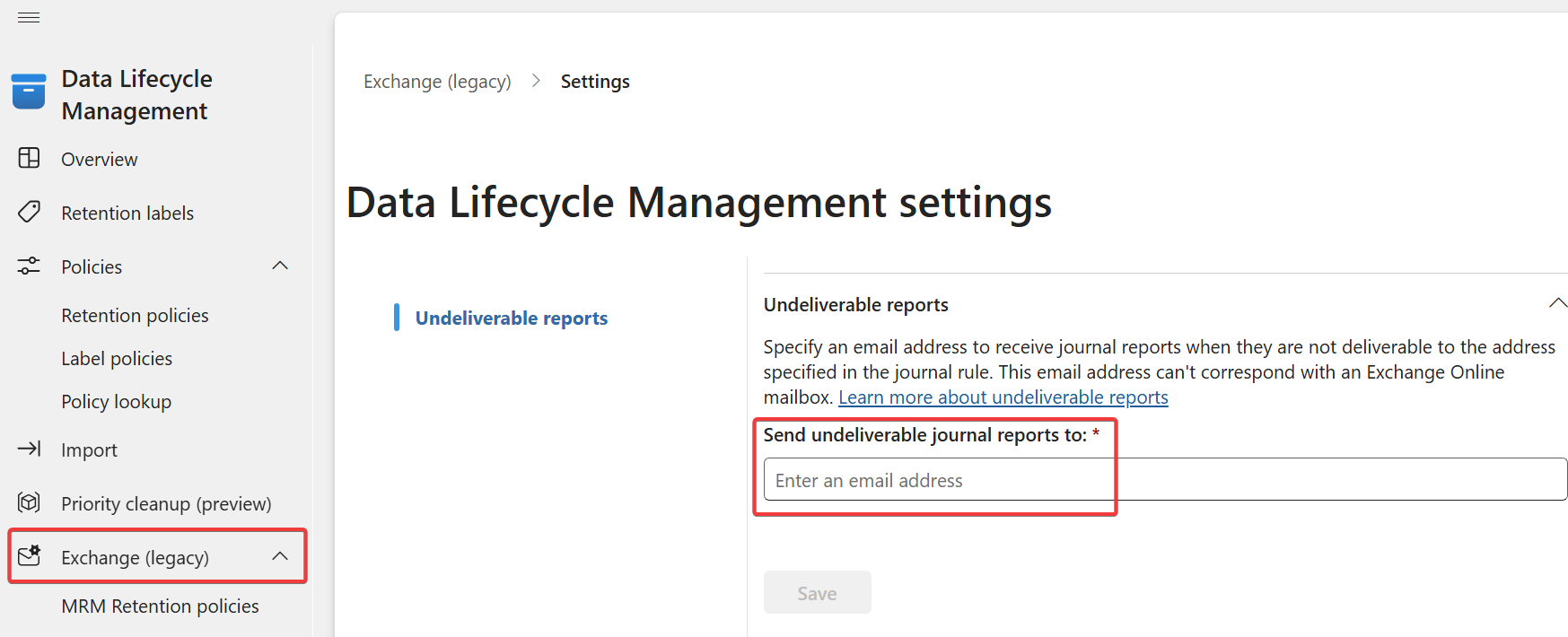
Change the NDR email address
Next, remove the Email Security NDR email address you added as part of setup, and/or replace it with a new address not linked to the Email Security service. This can only be performed by a global admin. To do this:
1. Log into the Microsoft Purview portal.
2. Navigate to Solutions → Data lifecycle management → Exchange (legacy). In the field Send undeliverable journal reports to, remove the solution-related email address or enter a different address and click Save.
Steps to complete in the Entra admin center
Remove the Outlook Add-in for all users
If you have deployed the Email Security Outlook add-in, you will need to remove it for all users. To do this:
1. Open the Microsoft Entra admin center.
2. Go to Settings → Integrated Apps. Open the entry for TitanHQ and click on Delete app.
Revoke CyberSentriq's access to your Microsoft environment
You should only Revoke CyberSentriq's access to this tenant's Microsoft environment if the tenant does not use the CyberSentriq enterprise application for other solutions, such as Phishing Simulation or Security Awareness Training.
To revoke access, open the Entra admin center and under Enterprise applications, search for "TitanHQ". Open the entry and click Delete.
For more information, see Delete an enterprise application - Microsoft Entra ID | Microsoft Learn.
 1.png)