
.png)




An MSP Admin can access a customer's archives in order to perform eDiscovery and compliance actions on the customer's behalf. The MSP can access the admin UI to configure the customer's tenant, but by default they will not have access to search customer archives.
MSP access to customer tenants is visible to the customer in the following places:
- The MSP’s login will be shown at the customer’s login URL.
- The MSP’s IDP connection will be displayed under Settings > Authentication.
- MSP Administrator accounts will be shown under Staff Members.
To access a customer’s archive, an MSP user must be able to authenticate to the customer’s archive tenant directly. This means they must either:
(1) have an account on the customer’s IDP; or
(2) have the MSP's IDP connected to the customer’s archive tenant.
Where option 1 is the case, the MSP can simply configure authentication between the archive tenant and the customer’s IDP as they normally would, and log in using the user account they have access to on their IDP.
To achieve option 2, the MSP Admin or Tenant Admin can allow authentication to the customer archive via the MSP’s IDP connection. This is shown under Settings > Authentication, below any authentication connections:
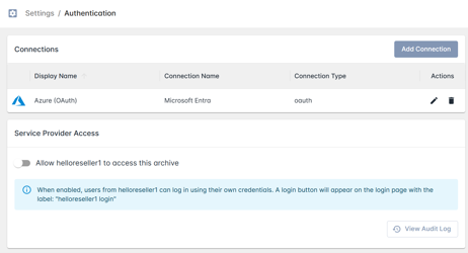
This will allow any user who can authenticate via this connection to access the customer’s archive tenant. However, to search as a Privileged User or act as a Data Guardian, an MSP user must also have permissions as a Staff Member for the customer’s archive tenant.
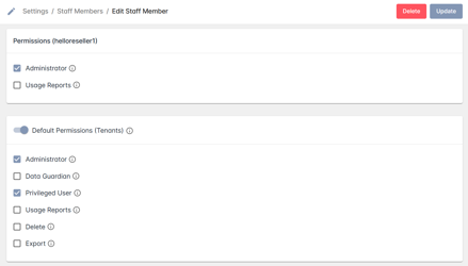
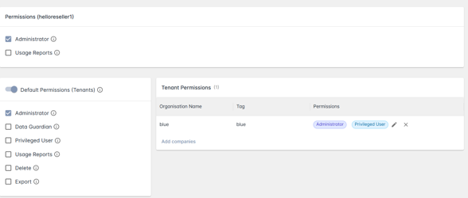
Permissions for customer tenants can be granted at MSP level under Settings > Staff Members. Permissions can be set in one of two ways:
- as defaults, applying to all customer tenants; or
- as specific permissions per customer tenant.
 1.png)