
.png)


Follow the steps below to schedule security awareness training (SAT). Training recipients will automatically be sent notification emails regarding their SAT enrollment, which will include links to their assigned modules and the completion date.
1. You can schedule security awareness training by going to Security Awareness Training > Overview or Security Awareness Training > SAT Campaigns. Click Schedule SAT.
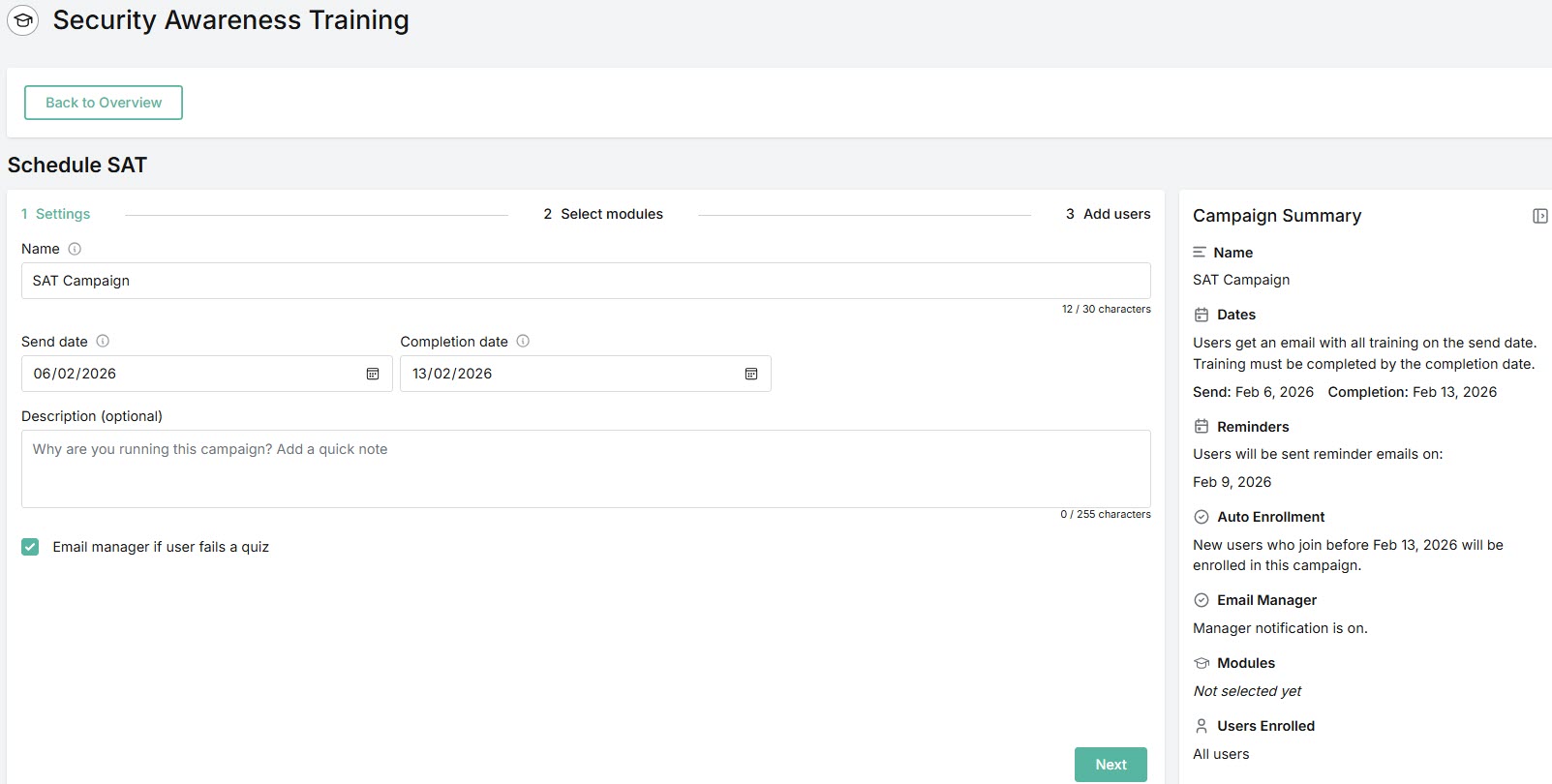
As you create a SAT campaign, a Campaign Summary panel on the right automatically updates the information. The following information is shown:
Name: Name of the SAT campaign.
Dates: This includes the Send date, which is when users are enrolled and emails containing links to the campaign training modules are sent. The Completion date is the date training must be completed by users.
Reminders: Dates on which users will be sent reminder emails. If a SAT campaign is less than 7 days, only one reminder is sent. If it is more than 7 days, two reminders are sent. The first reminder is sent halfway between the campaign start and end dates. The second reminder is sent the day before the end date. Dates will shift to the next working day.
Auto Enrollment: Indicates that any new users who join before the Completion date will be enrolled in the SAT campaign.
Email Manager: When checkbox is enabled, a user's manager will be notified if user fails a quiz or if the module deadline has passed and user hasn't attempted the quiz.
Modules: The training modules selected for the SAT campaign.
Users Enrolled: Indicates if all users have been enrolled in the campaign. If specific users are selected, then their names are listed.
2. Enter the following details:
Name: The name of the security awareness training campaign. A default name is given, which you can overwrite using a maximum of 30 characters.
Send Date: Date when users are enrolled and emails containing links to the campaign training modules are sent.
Completion Date: Date by which training must be completed by users. Following the completion date, users will no longer be able to access the training.
Description (optional): Short summary of the training.
Email manager if user fails a quiz (default: enabled): When checkbox is enabled, a user's manager will be notified if user fails a quiz or the module deadline has passed and user hasn't attempted the quiz. Deselect the checkbox to turn off email notification.
When you're ready, click Next.
3. Select up to 12 training modules from the list to send to your recipients by selecting the checkbox or clicking on the row. Each module shows the following:
Quiz: If a module includes a quiz, a checkmark is included in this column. Assigning modules with quizzes means that at the end of the training module, the user is presented with a quiz and given three opportunities to pass the quiz. If the manager email notification setting is enabled, then the user's manager will be notified if the user fails the quiz on the third attempt or if the module deadline passes without the user attempting the quiz.
Subtitles: If a module has subtitles, the languages available are shown in this column. Assigning training modules with subtitles enables users to view the training in the languages available. Hover over each language icon to view language name.
Topics: Names of topics that are covered in the training. For example, Staying Safe When Using Social Media covers Human Firewall, Social Engineering, Social Media, and Web Security topics. If you've added customized training modules, then you'll see the topics Uploaded video and Uploaded pdf attached to these.
When you're ready, click Next.
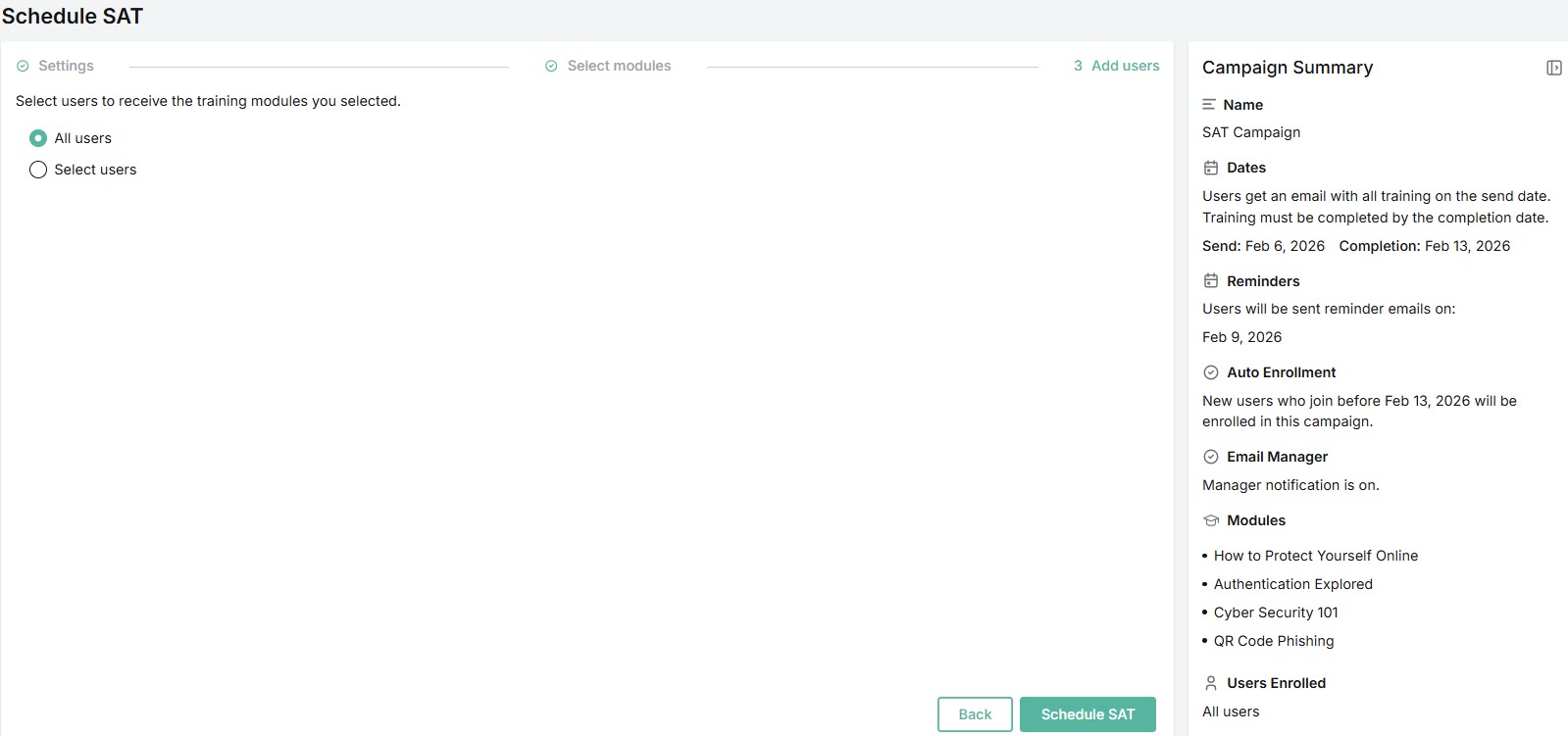
4. Select the users you want to enroll in the SAT campaign. The default option is All users. If you want to select specific users, choose Select users, and a list of your users will appear.
Note:
- When your account is first connected, our system takes up to 15 minutes to synchronize between Microsoft 365 and the Platform to populate the user list. If the initial attempt is unsuccessful, the sync is retried every 15 minutes until the user list is populated.
- Subsequent updates to the user list on the Microsoft side take approximately 24 hours to sync to the Platform. Our system checks every 15 minutes when the list was last synchronized with Microsoft 365, and updates the list if the last sync was more than 24 hours before.
5. Click Schedule SAT.
The newly scheduled security awareness training will appear in your SAT Campaigns table under Security Awareness Training > SAT Campaigns. See Managing SAT Campaigns for additional details.
 1.png)