
.png)




Follow the steps below to schedule phishing campaigns that use system-recommended lures. The campaigns you create will automatically send simulated phishing emails of different complexities to the customers you select. A lure is sent to each active user at a random time once every two-week period for the duration of the campaign.
Note: Security awareness training is automatically enabled when you create a phishing campaign. This means that users who click on a lure will receive an email notifying them that they've been assigned training. They'll receive a link to one of several training modules, such as Email Security or Data Protection.
1. You can create a phishing campaign by going to Phishing Simulation > Overview or Phishing Simulation > Phishing Campaigns. Click Create Campaign.
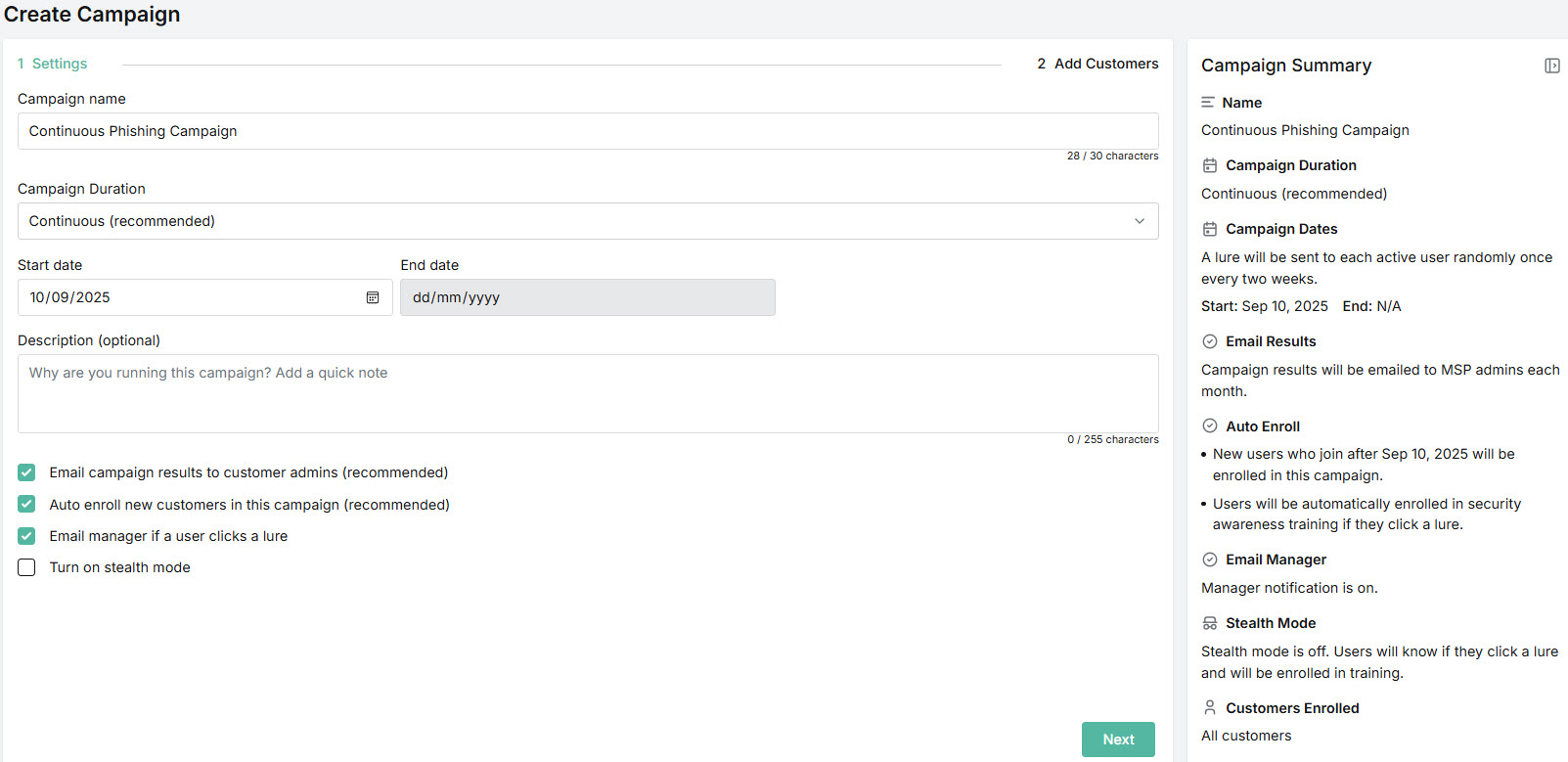
As you create a phishing campaign, a Summary panel on the right automatically updates the information. The following information is shown:
Name: Name of the phishing campaign.
Campaign Duration: Length of time campaign will run.
Campaign Dates: Dates when your campaign begins sending lures and when it finishes.
Email Results: Notification that campaign results will be emailed to MSP admins each month.
Auto Enroll: Notification that new users who join after the campaign start date will be automatically added to the campaign. Additionally, users are automatically enrolled in security awareness training if they click a lure.
Email Manager: Notification that manager will be emailed if user clicks a lure. If a user repeatedly interacts with the same lure, the manager only receives an email the first time a user clicks a lure.
Stealth Mode: Indicates if stealth mode is enabled. If enabled, users won't know that they've been enrolled in an active phishing campaign, and they won't receive reactive training.
Customers Enrolled: Indicates if all customers have been enrolled in the campaign. If specific customers are selected, then their names are listed.
2. Enter the following details:
Campaign Name: The name of your phishing campaign. A default name is given, which you can overwrite using a maximum of 30 characters.
Campaign duration: From the dropdown menu, select the length of time you want your phishing campaign to run. Different lures will be sent randomly to your customers' active users, once every two weeks.
Start Date: Date on which your phishing campaign begins sending lures. By default, today's date is automatically entered. To change this, you can enter the date or select the calendar
 icon to select a different start date.
End date: The end date is automatically prepopulated based on the campaign duration you selected. If you selected a Continuous campaign, then the end date is not applicable.Description (optional): Short summary of the campaign.
Email campaign results to customer admins (recommended): This checkbox is enabled by default, meaning that customer admins will automatically receive the phishing campaign results.
Auto enroll new customers in this campaign (recommended): This checkbox is enabled by default, meaning that new customers will automatically be enrolled in this phishing campaign.
Email manager if a user clicks a lure: This checkbox is enabled by default, meaning that a user's manager will be emailed if user clicks a lure. If a user repeatedly interacts with the same lure, the manager only receives an email the first time a user clicks a lure.
Turn on stealth mode: When you enable stealth mode, users won't know that they've been enrolled in an active phishing campaign. If they click on a lure, they won't be notified and they won't receive reactive training.
3. Click Next.
4. Select the customers you want to enroll in the phishing campaign. The default option is All Customers.
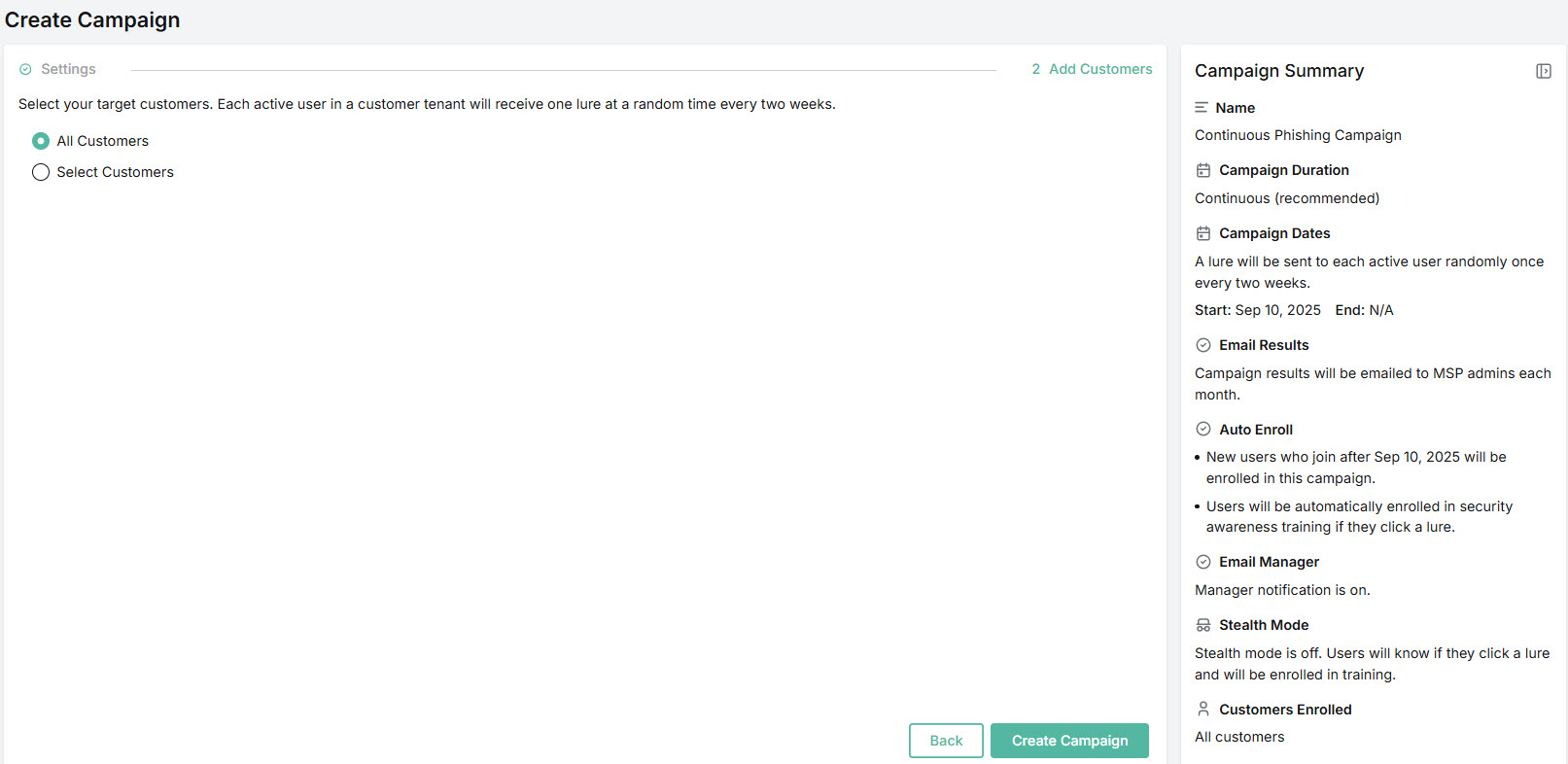
If you want to select specific customers, choose Select Customers and a list of your customers will appear. Select the checkbox(es) for the corresponding customer(s) or just click on the row(s). The Customers Enrolled list in the Summary panel will update as you select or deselect customers. Note that only licensed customers are displayed.
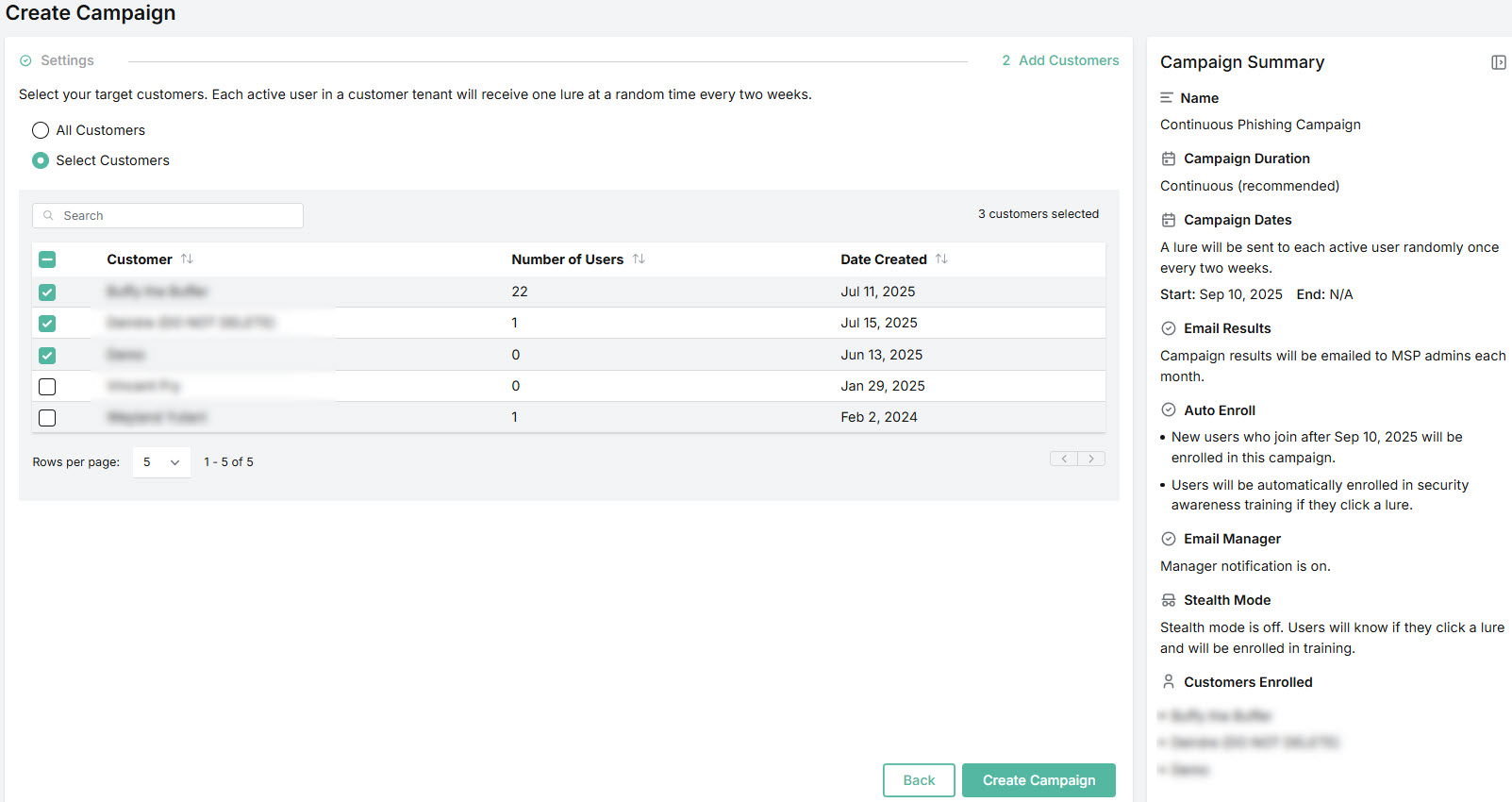
5. Click Create Campaign.
The new campaign will appear in your Phishing Campaigns table in Phishing Simulation > Phishing Campaigns. See Managing Phishing Campaigns for additional details.
 1.png)