
.png)




Multi-condition exemptions give administrators the ability to combine an IP address with a domain or with an email address in a single exemption (as opposed to matching on an IP address, domain, or email address alone). This enables more customized exemption scoping, which strengthens regulatory compliance.
Every multi-condition exemption must include an IP address, which is then paired with either a domain or an email address. You can create a multi-condition exemption from scratch, or convert an existing single-condition exemption into a multi-condition exemption. This can be done by adding an IP address to a domain or email exemption, or by adding a domain or email address to an IP exemption.
Note: Exemptions can be added on the MSP or customer level, with customer-level exemptions taking precedence. Read more in Understanding Customer Level Overrides.
PAGE CONTENTS
- How to add a new multi-condition exemption
- How to add a condition to an existing exemption
- Overlapping exemptions
How to add a new multi-condition exemption
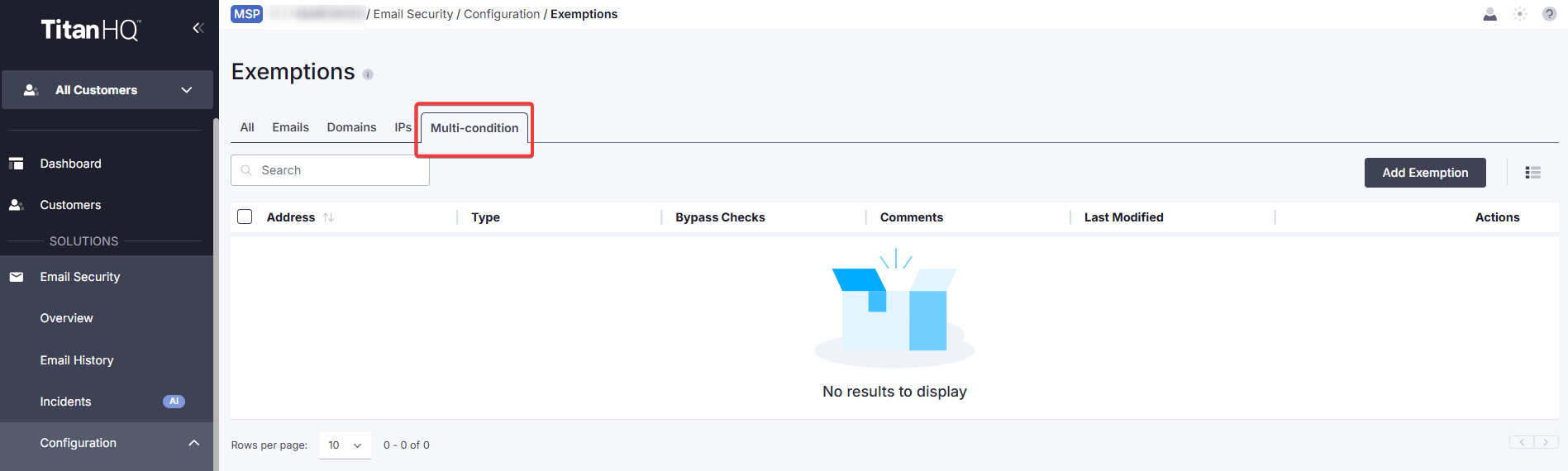
1. Go to Email Security > Configuration > Exemptions. Open the Multi-condition tab.
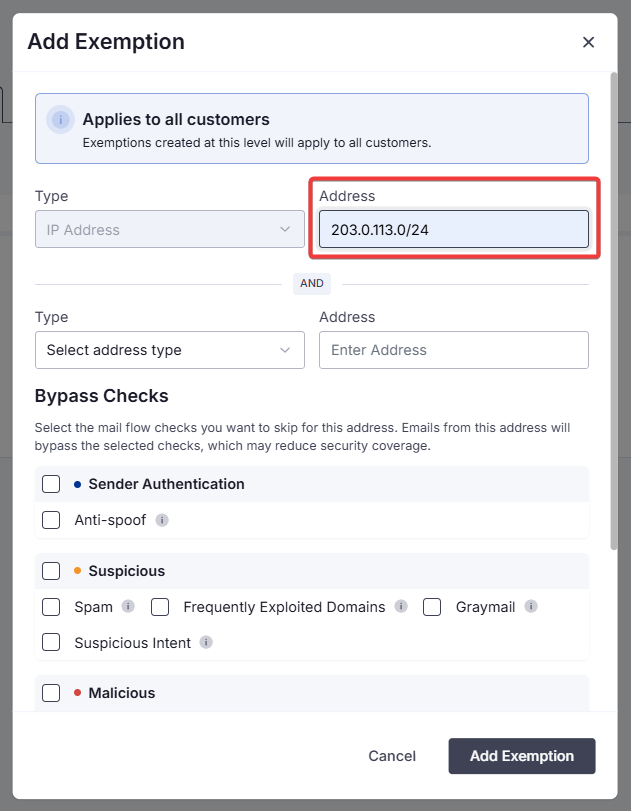
2. In the Add Exemption window, in the first Address field, enter the IP address range you want to exempt.
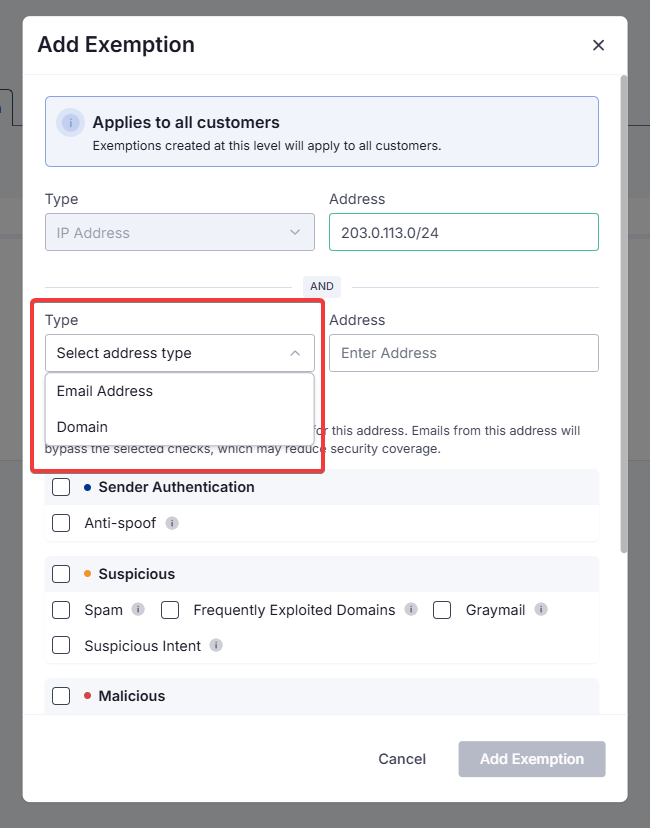
3. In the second Type field, select Email Address or Domain depending on what you want to exempt.
4. In the second Address field, enter the applicable email address or domain.
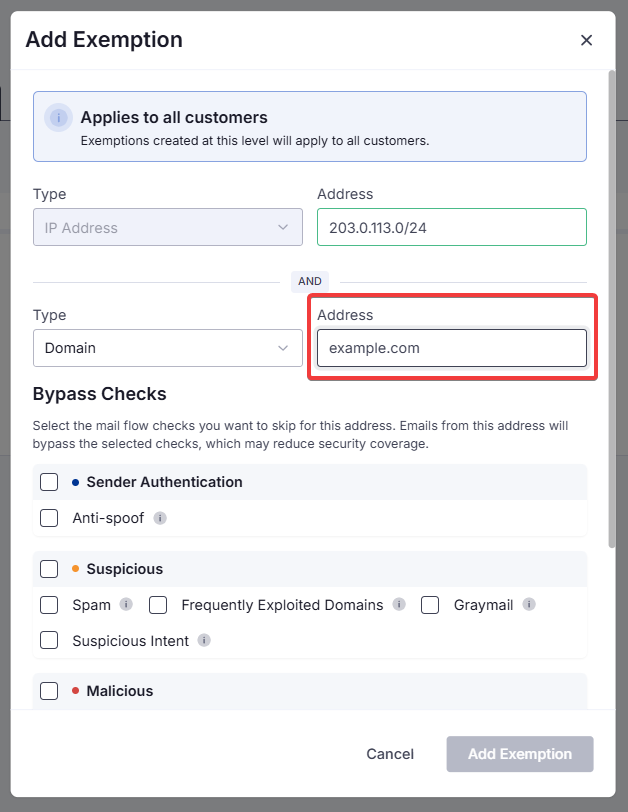
5. Check the box(es) for the mail flow check(s) you want to skip. For more information on the different types of checks, see Adding IP Exemptions. You can also add a descriptive comment to the exemption.
6. When you're ready, click on Add Exemption.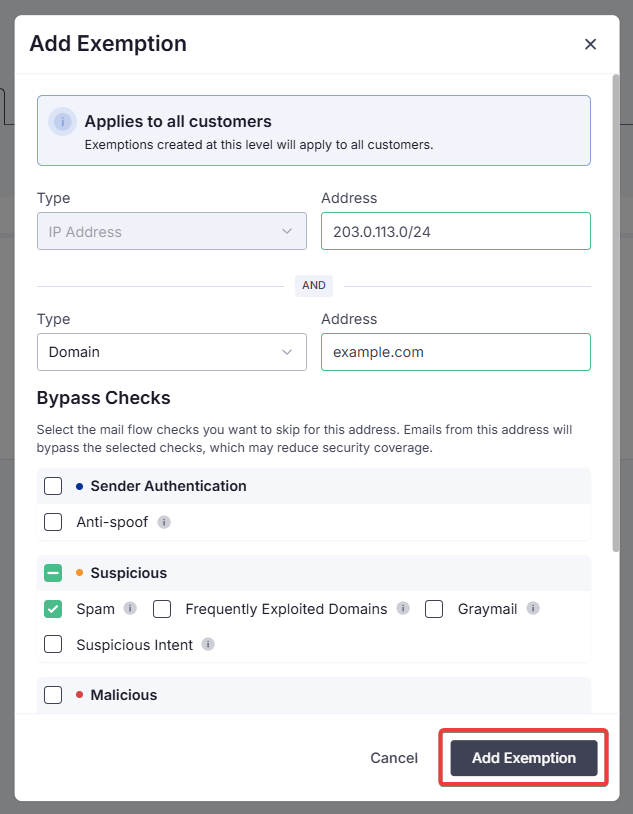
The new exemption will appear in the Multi-condition tab.

How to add a condition to an existing exemption
For this example, we are adding an IP address condition to an existing domain exemption.
1. Go to Email Security > Configuration > Exemptions.
2. Locate the exemption you want to update. Click on its Edit icon on the right.

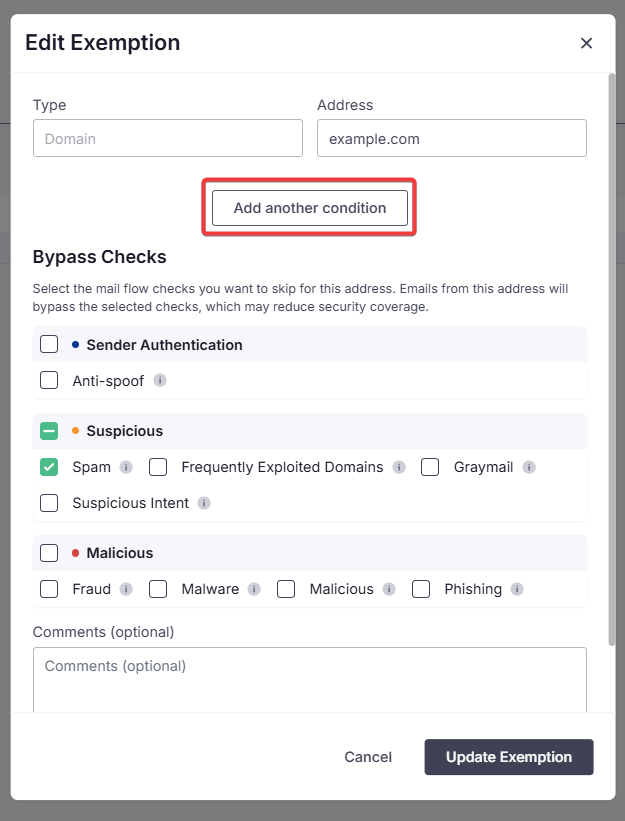
3. In the Edit Exemption window, click on Add another condition.
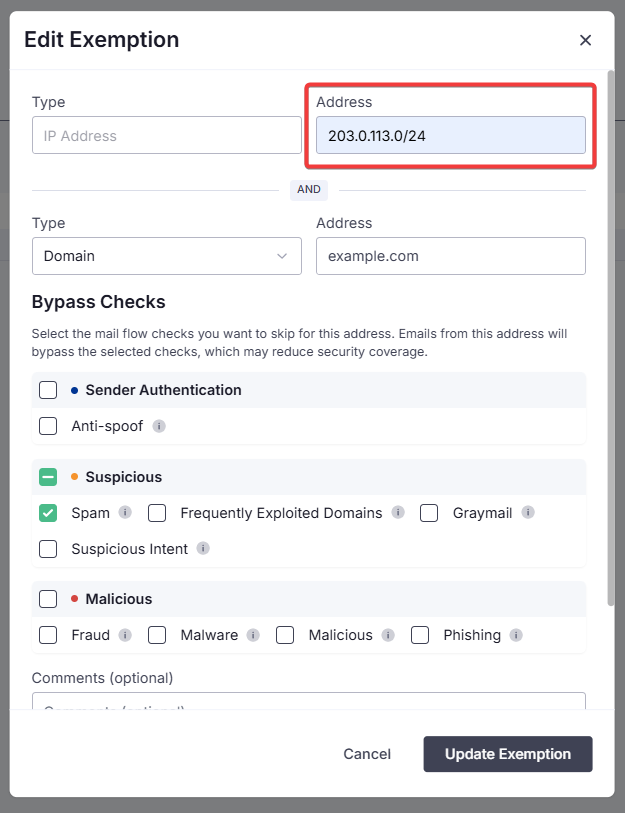
4. In the first Address field, enter the IP address you want to add as a condition. At this point, you can also make changes to the existing exemption condition, and/or add further bypass checks or comments.
5. When you're ready, click on Update Exemption.
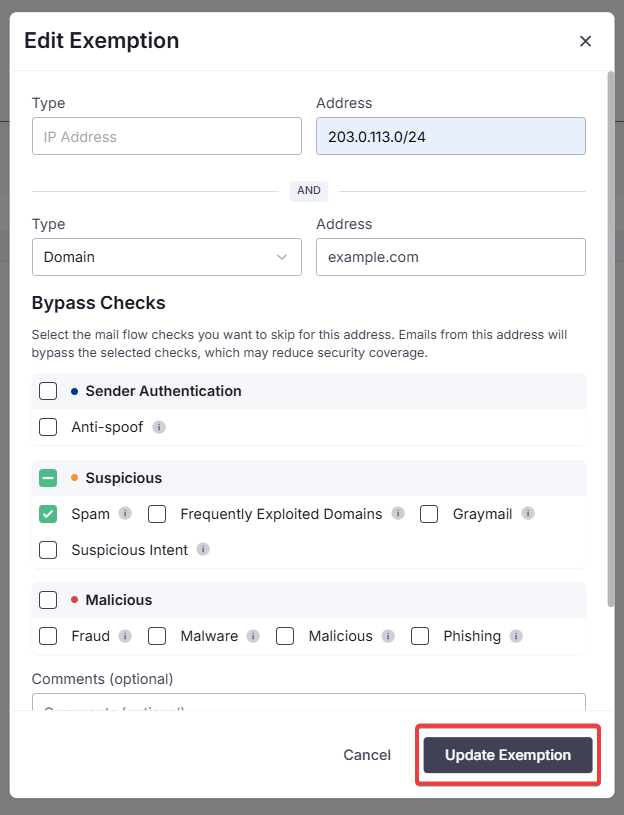
This exemption will no longer appear in the Domains tab but will move to the Multi-condition tab.

Overlapping exemptions
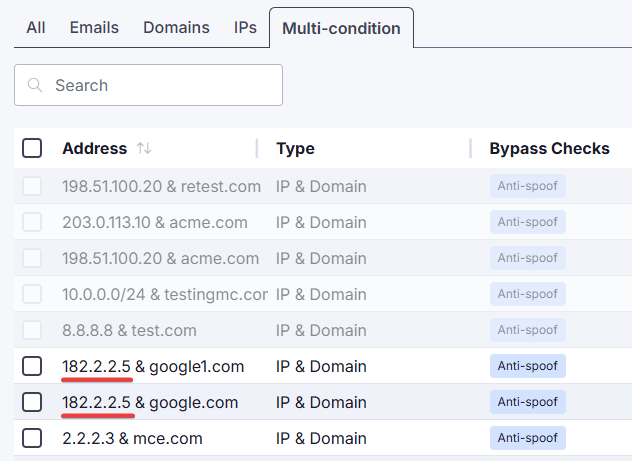
Because an exemption can only contain one IP address, you cannot add a second IP address to an existing IP exemption. However, you can use the same IP address, domain, or email address in more than one multi-condition exemption.
 1.png)