
.png)




As a customer admin, you can run a Module Results by User report to gain insight to your users' training completion. Data covering module results, scores, attempts and completion dates are provided in the report.
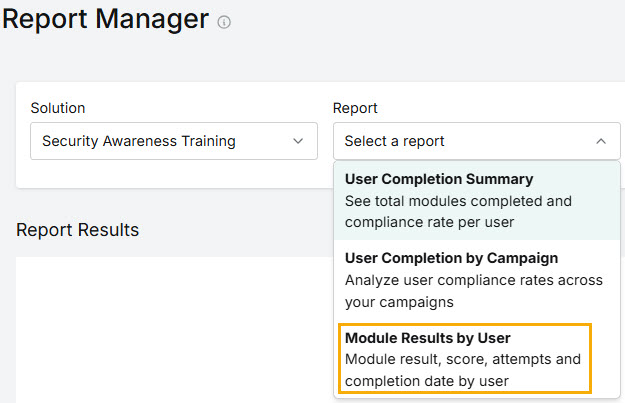
Go to Report Manager and from the Solution dropdown menu, select Security Awareness Training. From the Report dropdown menu, select Module Results by User.
Three filter menus appear, from which you can make selections to produce a concise set of results:
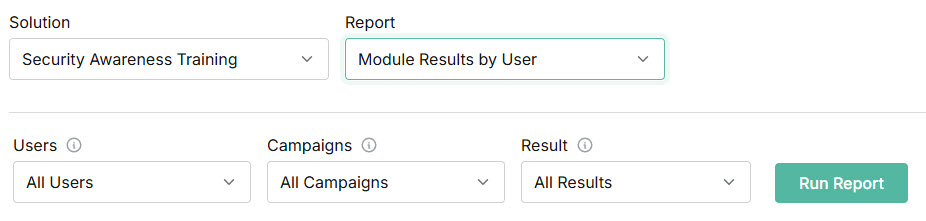
Users: When you select this dropdown menu, you'll see a a list of your SAT users.
Scroll the list to find specific users or use the Search
 box.
box.Select the user(s) you want to include in the report results by clicking the checkbox(es) beside them.
Campaigns: Select the Campaigns dropdown menu to see a list of all the campaigns your users have been enrolled in.
Scroll the list to find specific campaigns or use the Search
box.Select the campaigns(s) you want to include in the report results by clicking the checkbox(es) beside them. Alternatively, you can run a report using the default option All Campaigns.
Result: Select the dropdown menu and select the result you want to include in the report.
For example, you can run a report for all users across all campaigns, or you can just select one user and view their data in one or more campaigns.
Select Run Report. The Report data is displayed as follows:
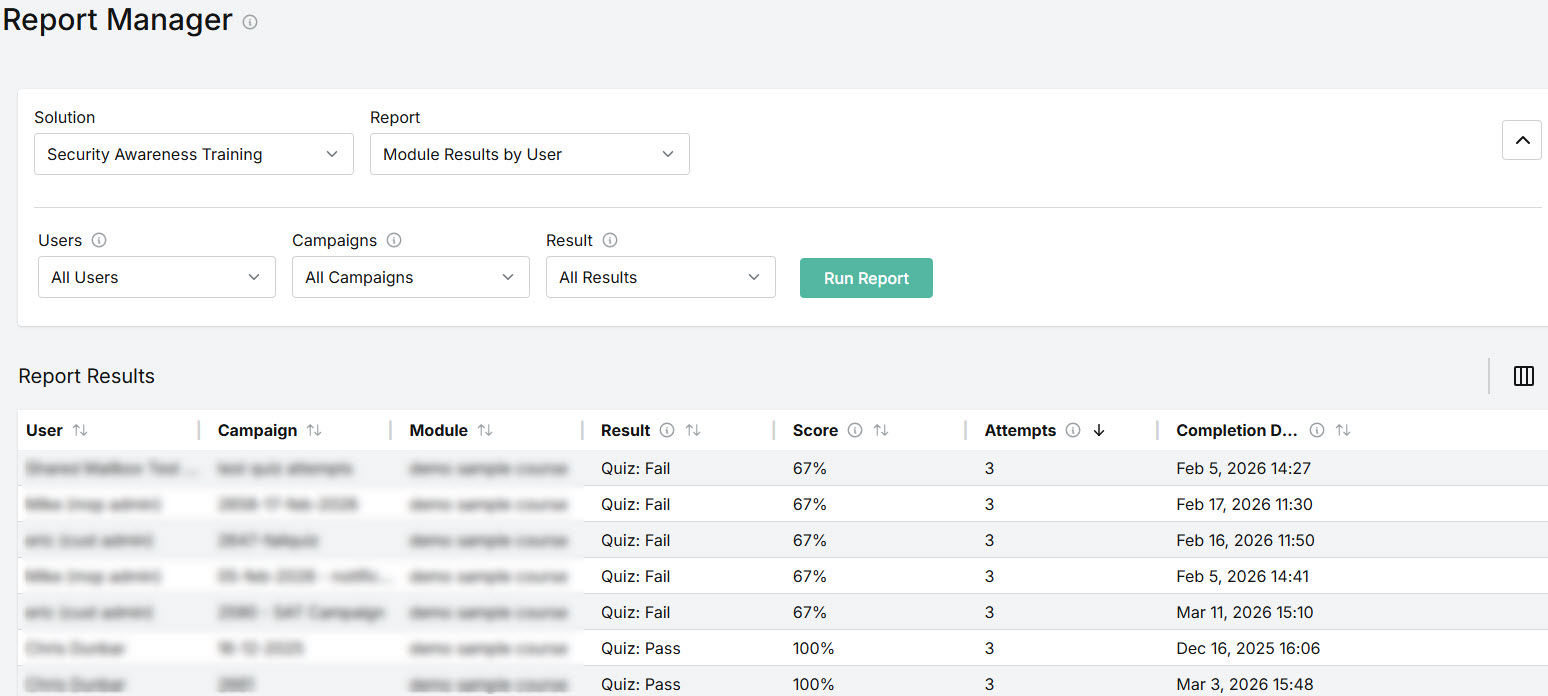
User: Name of user assigned security awareness training.
Email: Email address of the user. (By default, this column is hidden. Go to the column icon, as described below, to display this data.)
Campaign: Name of the SAT campaign user has been enrolled in.
Module: Name of the module assigned to the user.
Result: User's result for the module.
Score: User's score for last quiz attempt.
Attempts: Number of attempts by user to complete module. A maximum of three attempts is allowed.
Completion Date: Date when user completed the module.
You can manage how the table is displayed as follows:
Select the column
 icon to manage table columns. By default, all columns are arranged in a specific order. You can change the display by doing the following:
Select or deselect the checkbox beside a column name to show or hide a column.
Use the reordering
 icon to move columns up and down the list. This changes the left-to-right display. An item at the top of the list, for example, means that it will be the first column on the left. Select Reset Order to restore the columns to their default positions.
Resize columns by hovering your cursor over the column boundary you want to adjust until it becomes a resize
 cursor. Drag the boundary until the column is the width you want.
Select the up/down
 arrows in the column headers to sort column content.
To download and save a copy of the results, select Download . You have the option to save the report as either a PDF or CSV file.
 1.png)