
.png)




Follow the steps below to schedule security awareness training (SAT). Training recipients will automatically be sent notification emails regarding their SAT enrollment, which will include links to their assigned modules and the completion date.
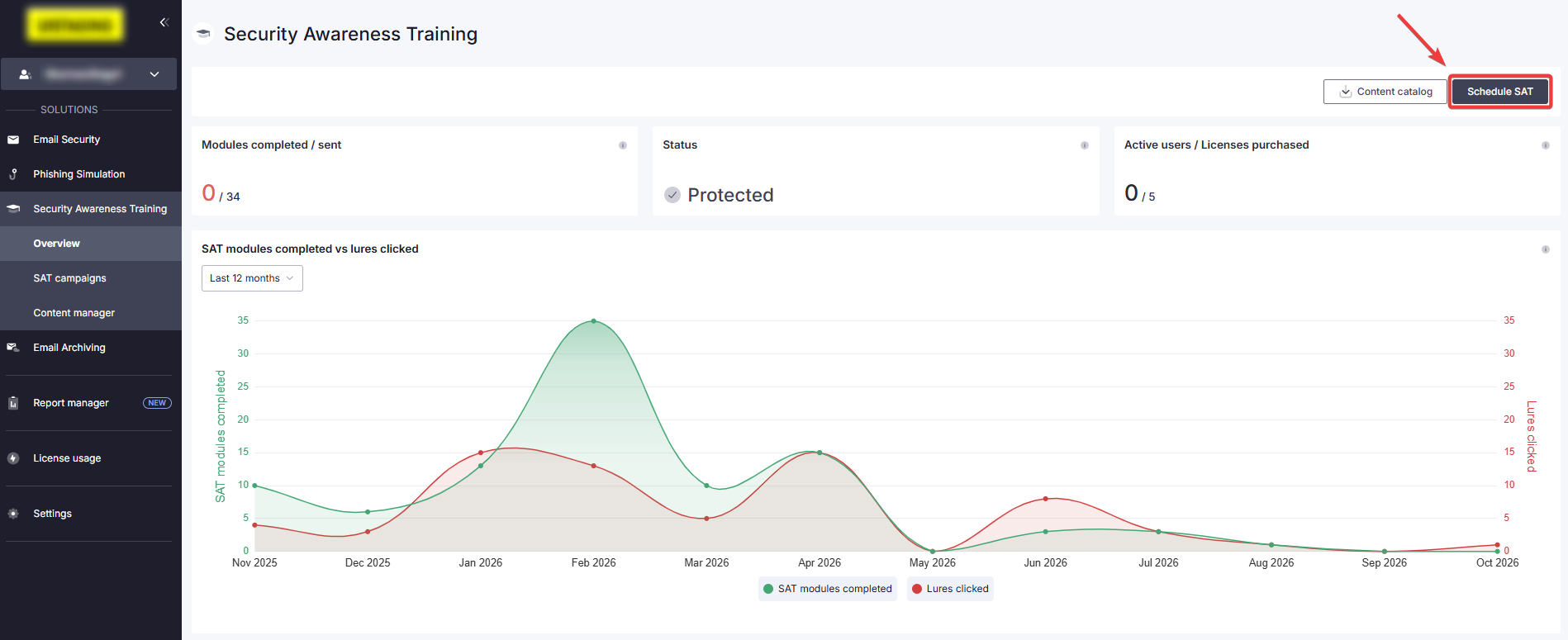
1. You can schedule security awareness training by going to Security Awareness Training > Overview or Security Awareness Training > SAT campaigns. Click Schedule SAT at the top right.
2. Provide the details as shown below. As you fill in the fields, the Campaign summary panel on the right will update automatically.
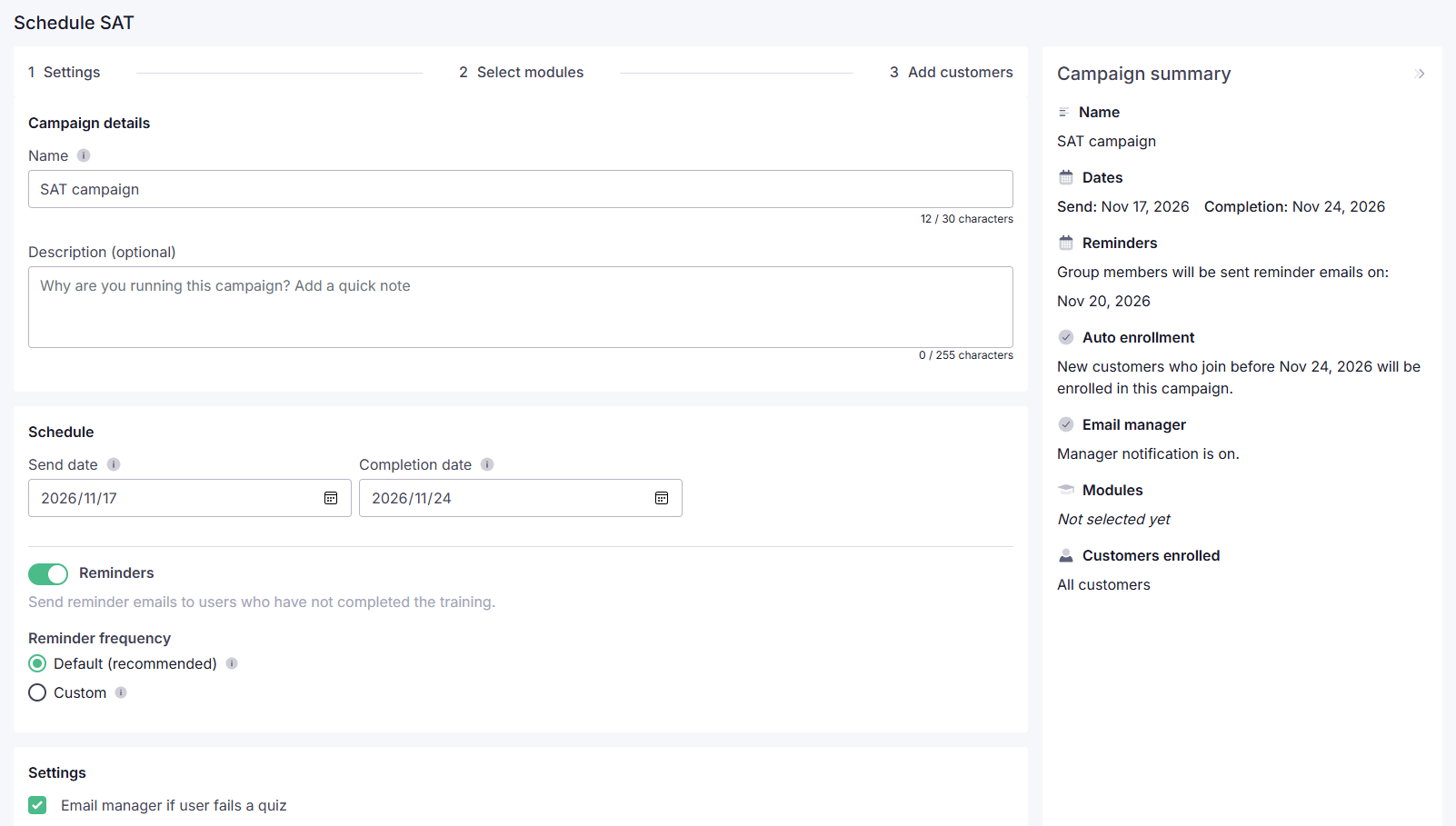
- Name: The name of the campaign (maximum 30 characters).
- Description (optional): A short summary of the campaign.
Send date: Date when users are enrolled and emails containing links to the training modules are sent.
Completion date: Date by which training must be completed by users. After the completion date, users will no longer be able to access the training.
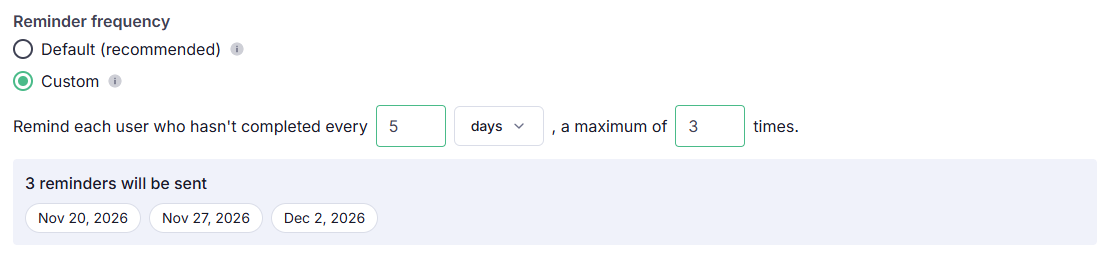
- Reminders: If enabled, reminder emails will be sent to users who have not completed the training. If a send date falls on a weekend, the reminder is sent on the previous working day.
Default: One reminder halfway through the campaign, and (for campaigns longer than a week) one on the day before the completion date.
Custom: A specified number of reminders at specified intervals.
- Email manager if user fails a quiz: If enabled, a user's manager will be notified if the user fails a quiz, or if the module deadline passes without the user attempting the quiz. Default setting: Enabled.
When you're ready, click Next.
3. Select up to 12 modules to include in the training campaign.
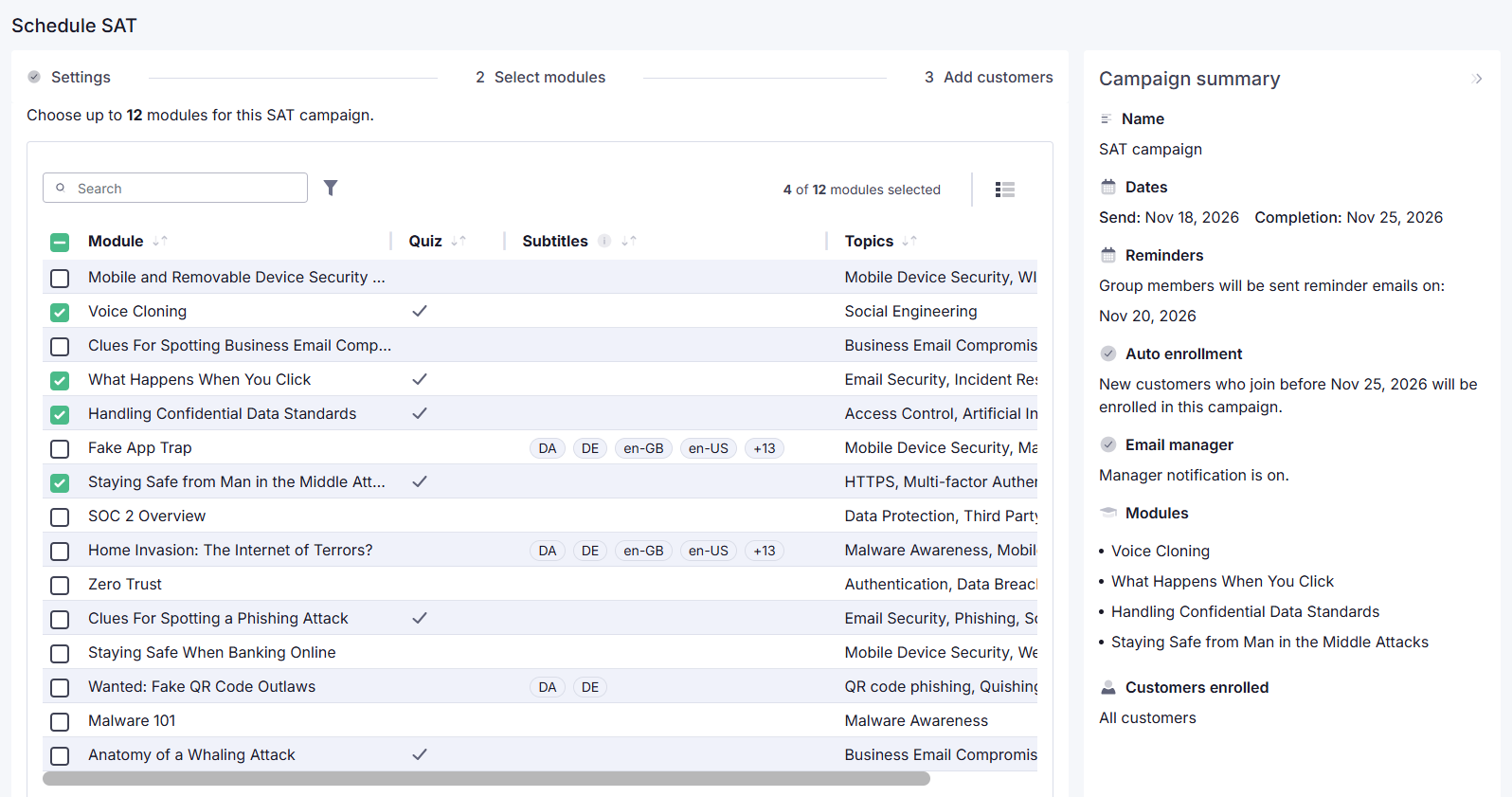
Each module shows the following:
Quiz: If a module includes a quiz, a checkmark is included in this column. Assigning modules with quizzes means that at the end of the training module, the user is presented with a quiz and given three opportunities to pass the quiz. If the manager email notification setting is enabled, then the user's manager will be notified if the user fails the quiz on the third attempt or if the module deadline passes without the user attempting the quiz.
Subtitles: If a module has subtitles, the languages available are shown in this column.
Topics: Names of topics that are covered in the training.
When you're ready, click Next.
4. Select the customers you want to enroll in the SAT module. The default option is All Customers.
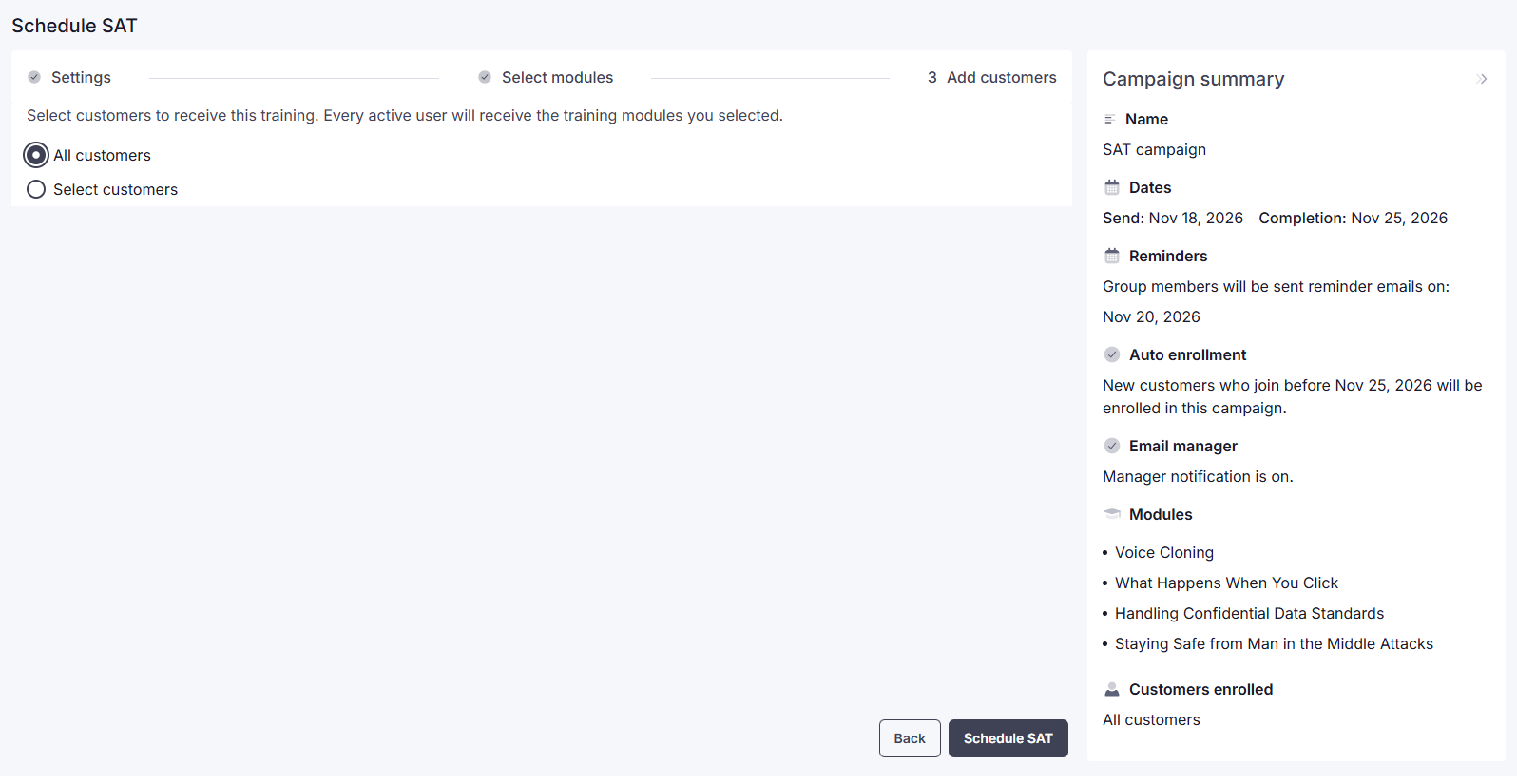
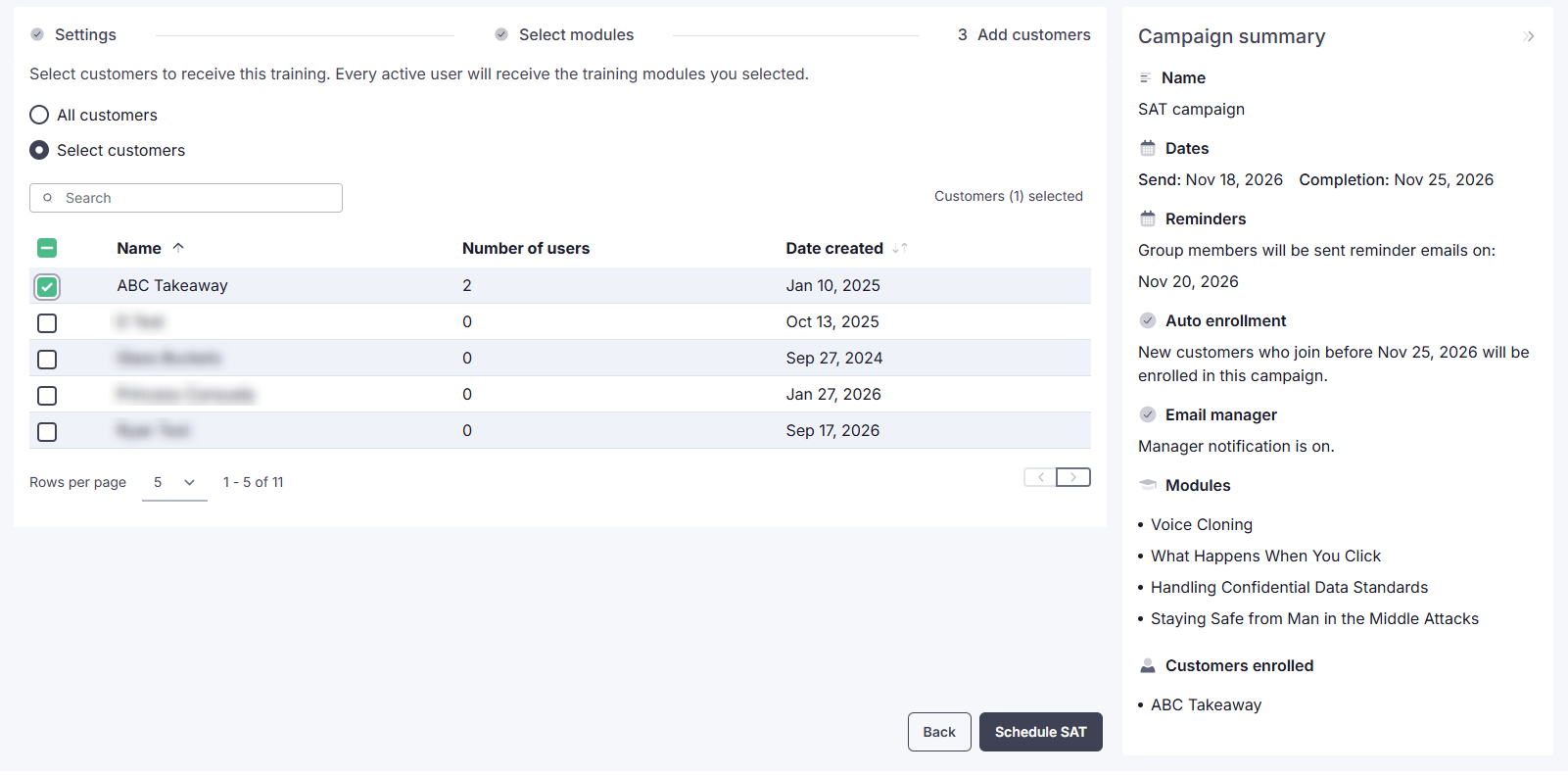
If you want to select specific customers, choose Select customers, and check the applicable customers in the provided list.
Note that only licensed customers are displayed.
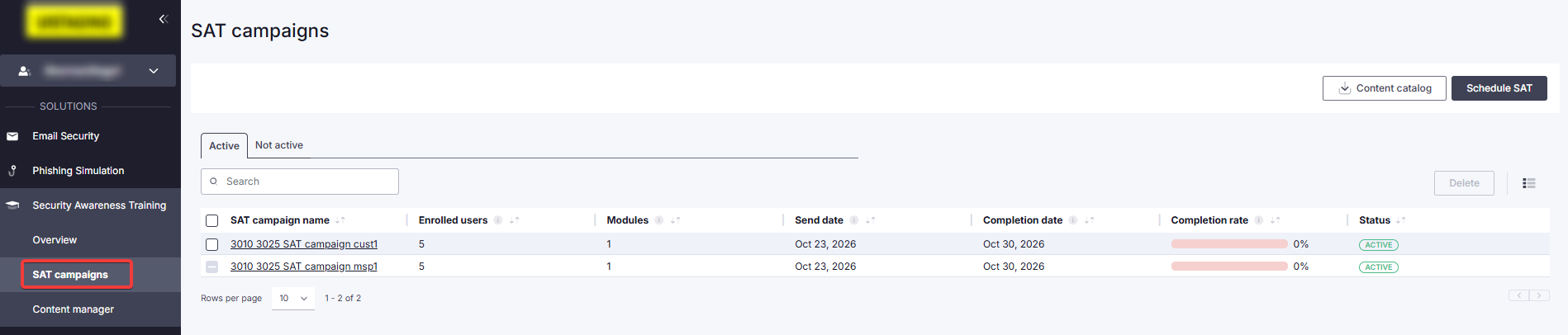
5. Click Schedule SAT.
The newly scheduled security awareness training will appear in the SAT campaigns table. Read more in Managing SAT Campaigns.
 1.png)